We can always goto the hive \template\features and open the feature xml and find the unique ID of the feature that we are after but only intrigue part is most of the time the name appear in the feature folder is different to what we see in the SharePoint feature list either at the site or site collection level, one good example is Content Organizer, the folder name is DocumentRoutine, so I founnd the following link is very usefull in this aspect.
http://blogs.msdn.com/b/mcsnoiwb/archive/2010/01/07/features-and-their-guid-s-in-sp2010.aspx
Monday, January 31, 2011


Use DataSets in document libraries.
Document sets is a really cool thing in SharePoint 2010, I have read many articals about this and also seen how to get it to use.
Here is the simple steps to get the document set content type into your document library.
- Goto the site collection features and activate the Document Sets feature for the site collection
Once this is activated, the document sets content type is available for this site collection.
- Goto the library settings of the document library where you like to have the document sets.
- Select the advance settings
- Select Yes for the Allow management of content types under the Content types section and save it.
Now the Content types section is available under the library settings.
- Click Add fromm existing site content types under the Content Types section.
- Select the Document Set fromm the list.
This is pretty simple but we forget so I decided to keep it here :)
Here is the simple steps to get the document set content type into your document library.
- Goto the site collection features and activate the Document Sets feature for the site collection
Once this is activated, the document sets content type is available for this site collection.
- Goto the library settings of the document library where you like to have the document sets.
- Select the advance settings
- Select Yes for the Allow management of content types under the Content types section and save it.
Now the Content types section is available under the library settings.
- Click Add fromm existing site content types under the Content Types section.
- Select the Document Set fromm the list.
This is pretty simple but we forget so I decided to keep it here :)
Monday, December 20, 2010
Change the application pool identity in SharePoint 2007.
I know now we are so used to SharePoint 2010, but we still need to support SharePoint 2007 and we always forget the simple things that we always need to have at our finger tips, I reckon this is one of them that we frequently need during development and testing, so I thought of recording this in this post so at least I can come back to this when ever I need it and similarly I thought there may be lot of devs out there who will need this.

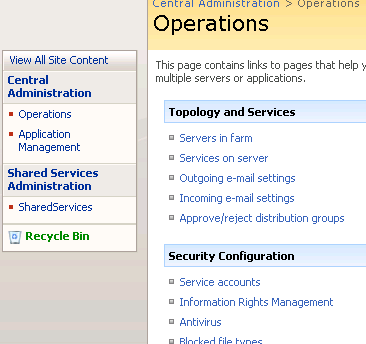
Launch central admin and select operations and then select service accounts under security configuration.
 Select the application pool that you need to change the identity.
 Select the application pool that you need to change the identity.
Tuesday, December 14, 2010
Delete the default SharedServices in SharePoint 2007
The way to delete the default SharedSevices provider when you have only the default one available.
stsadm -o deletessp -title {SharedServices1} -force
Use the correct title instead of the SharedServices1 in case your default name is different. The above will not work if you drop -force.
stsadm -o deletessp -title {SharedServices1} -force
Use the correct title instead of the SharedServices1 in case your default name is different. The above will not work if you drop -force.
Saturday, August 7, 2010
SharePoint 2010 on Windows 7
It is really cool that we can install the SharePoint 2010 on Windows 7 even though the installation is not as smooth as on Windows 2008 servers but following the explanation given in the msdn article, we can get it to work.
I installed the SharePoint 2010 on Windows 7 (x64), 99% of the installation completed but it failed in executing the dbwrap.exe with the following message in the log file.
Executing command path: 'C:\Program Files\Common Files\Microsoft Shared\SERVER14\Server Setup Controller\dbwrap.exe', args: 'timeout=2950'
You can find the log file at C:\Users\[User name]\AppData\Local\Temp\SharePoint Server Setup(201008052159032560).log
To get around this, check the and see whether the SharePoint instance of the sql express is installed in your machine, most likely not, then manually, install the SharePoint instance of sql express and run the configuration wizard to complete the configuration.
This solved my problem and finally I have a stand along SharePoint 2010 in my Windows 7.
I installed the SharePoint 2010 on Windows 7 (x64), 99% of the installation completed but it failed in executing the dbwrap.exe with the following message in the log file.
Executing command path: 'C:\Program Files\Common Files\Microsoft Shared\SERVER14\Server Setup Controller\dbwrap.exe', args: 'timeout=2950'
You can find the log file at C:\Users\[User name]\AppData\Local\Temp\SharePoint Server Setup(201008052159032560).log
To get around this, check the and see whether the SharePoint instance of the sql express is installed in your machine, most likely not, then manually, install the SharePoint instance of sql express and run the configuration wizard to complete the configuration.
This solved my problem and finally I have a stand along SharePoint 2010 in my Windows 7.
Monday, May 31, 2010
Adding a new federated location to search service applicaitons.
As we know the Shared services provider is gone in SharePoint 2010 and instead we have a nice SharePoint service application model. I do not try to explain the difference in details as I found some nice well written article readily available and hit easily by googling. The way I understand, in brief, the consumers can access the service application using the service application proxy which knows how to find out where the application is running. I think that is enough here and my focus is to tell you how to add a new federated location to a search service application.
I recently played with the search service application and I had to add a federated location to the search application automatically, we did that in SharePoint 2007 using SearchContext but it is not an option here in SharePoint 2010, SearchContext is still available but that is marked as obsolete.
So way to do is, by getting all the search service application and iterating through them and adding the new federated location if it is not already existing.
The challenge is how to get all the search service application in the farm.
First get all the services using the SPFarm.Local.Services, and iterate through all the services and find the services of type SearchQueryAndSiteSettingsService. The search applications can be found there.
//Get all the services in this farm
services = Microsoft.SharePoint.Administration.SPFarm.Local.Services;
//Iterate through all the services to find the SearchQueryAndSiteSettingsServices
foreach (SPService service in services)
{
//All Search service applicaitons are under SearchQueryAndSiteSettingsService
if (service is SearchQueryAndSiteSettingsService)
{
//Get all the search service application.
serviceApplicaiton = service.Applications;
foreach (SPServiceApplication applicaiton in serviceApplicaiton)
{
//Check whether the application is a search service application
if (applicaiton is SearchServiceApplication)
{
//This is a search service applicaiton
searchApplication = (SearchServiceApplication)applicaiton;
//Check whether the new location is already added.
if (!IsLocationExists(searchApplication.LocationConfigurations))
{
//Create a new locaiton
federatedLocation = new LocationConfiguration();
//Import the federated location
GetStream(ref filestream);
federatedLocation.Import(filestream);
searchApplication.AddNewLocationConfiguration(federatedLocation);
}
}
}
}
}
I recently played with the search service application and I had to add a federated location to the search application automatically, we did that in SharePoint 2007 using SearchContext but it is not an option here in SharePoint 2010, SearchContext is still available but that is marked as obsolete.
So way to do is, by getting all the search service application and iterating through them and adding the new federated location if it is not already existing.
The challenge is how to get all the search service application in the farm.
First get all the services using the SPFarm.Local.Services, and iterate through all the services and find the services of type SearchQueryAndSiteSettingsService. The search applications can be found there.
//Get all the services in this farm
services = Microsoft.SharePoint.Administration.SPFarm.Local.Services;
//Iterate through all the services to find the SearchQueryAndSiteSettingsServices
foreach (SPService service in services)
{
//All Search service applicaitons are under SearchQueryAndSiteSettingsService
if (service is SearchQueryAndSiteSettingsService)
{
//Get all the search service application.
serviceApplicaiton = service.Applications;
foreach (SPServiceApplication applicaiton in serviceApplicaiton)
{
//Check whether the application is a search service application
if (applicaiton is SearchServiceApplication)
{
//This is a search service applicaiton
searchApplication = (SearchServiceApplication)applicaiton;
//Check whether the new location is already added.
if (!IsLocationExists(searchApplication.LocationConfigurations))
{
//Create a new locaiton
federatedLocation = new LocationConfiguration();
//Import the federated location
GetStream(ref filestream);
federatedLocation.Import(filestream);
searchApplication.AddNewLocationConfiguration(federatedLocation);
}
}
}
}
}
Thursday, March 4, 2010
Binding asynchronous event handlers as synchronous
In SharePoint, we know, there are two types of event receivers, asynchronous and synchronous, for example, the ItemUpdating and ItemUpdated. The ItemUpdating is synchronous while the ItemUpdated is asynchronous. The obvious difference is, the synchronous event is raised before committing the changes so that we have the opportunity to cancel whatever the the operation but not in the asynchronous event as that is raised after successfully committing the changes requested.
With that simple description I will dive direct to the specifics as there are plenty of information available about event handlers in SharePoint out there. From here on, I will make a safe assumption that you know about the event handler in SharePoint and also how to write simple event handler.
With that I will explain my finding on how to bind the asynchronous event handler as synchronous as this will help us in some scenarios.
By default, using the object model, we can register the event handlers by,
parentList.EventReceivers.Add(SPEventReceiverType.ItemAdded, Constants.AssemblyName.EventManagement, className);
parentList.Update()
This will bind the event handler to the list using the default binding depending on the type of the event, for example, if it is ItemAdding, binding is synchronous and ItemAdded the binding is asynchronous.
Another way of registering an event handler to a list is by creating an empty handler and setting the values separately,
//Create the event handler
itemAddedEventReceiver = parentList.EventReceivers.Add();
//Set the values for the item added event receiver
itemAddedEventReceiver.Name = NameOfItemAdded;
//Set the binding
itemAddedEventReceiver.Synchronization = SPEventReceiverSynchronization.Synchronous;
itemAddedEventReceiver.Type = SPEventReceiverType.ItemAdded;
itemAddedEventReceiver.Assembly = Constants.AssemblyName.EventManagement;
itemAddedEventReceiver.Class = className;
itemAddedEventReceiver.Update();
parentList.Update();
Main advantage of registering event handlers in the second way, is, probably obvious by now, we can change the binding, so we can register the asynchronous event handlers such as ItemAddeded with binding set to synchronous as below.
itemAddedEventReceiver.Synchronization = SPEventReceiverSynchronization.Synchronous;
This way it is guaranteed that both ItemAdding and ItemAdded are completed synchronously. The main advantage I found here is, consider the document library and if you need to perform an automatic operation whenever a new document is added, you can do that in the ItemAdded event handler and modify the the list item and save it with the modified data within ItemAdded event handler, this works well with the multiple document updated as the multiple document update raises only ItemAdding and ItemAdded, but in the case of single document upload, as a standard feature in document library, just after the document is uploaded, SharePoint opens the list item in property edit page to enter the new property values, now since we modify the list item in ItemAdded asynchronously, the version of the list item in the property edit page is not the one we saved in ItemAdded event handler as a result when we attempt to save the new properties, we will get the unfortunate save conflicts.
So this can be avoided by registering the ItemAdded event handler to work synchronously, then the property edit page will be opened with the updated list item and not the original one.
With that simple description I will dive direct to the specifics as there are plenty of information available about event handlers in SharePoint out there. From here on, I will make a safe assumption that you know about the event handler in SharePoint and also how to write simple event handler.
With that I will explain my finding on how to bind the asynchronous event handler as synchronous as this will help us in some scenarios.
By default, using the object model, we can register the event handlers by,
parentList.EventReceivers.Add(SPEventReceiverType.ItemAdded, Constants.AssemblyName.EventManagement, className);
parentList.Update()
This will bind the event handler to the list using the default binding depending on the type of the event, for example, if it is ItemAdding, binding is synchronous and ItemAdded the binding is asynchronous.
Another way of registering an event handler to a list is by creating an empty handler and setting the values separately,
//Create the event handler
itemAddedEventReceiver = parentList.EventReceivers.Add();
//Set the values for the item added event receiver
itemAddedEventReceiver.Name = NameOfItemAdded;
//Set the binding
itemAddedEventReceiver.Synchronization = SPEventReceiverSynchronization.Synchronous;
itemAddedEventReceiver.Type = SPEventReceiverType.ItemAdded;
itemAddedEventReceiver.Assembly = Constants.AssemblyName.EventManagement;
itemAddedEventReceiver.Class = className;
itemAddedEventReceiver.Update();
parentList.Update();
Main advantage of registering event handlers in the second way, is, probably obvious by now, we can change the binding, so we can register the asynchronous event handlers such as ItemAddeded with binding set to synchronous as below.
itemAddedEventReceiver.Synchronization = SPEventReceiverSynchronization.Synchronous;
This way it is guaranteed that both ItemAdding and ItemAdded are completed synchronously. The main advantage I found here is, consider the document library and if you need to perform an automatic operation whenever a new document is added, you can do that in the ItemAdded event handler and modify the the list item and save it with the modified data within ItemAdded event handler, this works well with the multiple document updated as the multiple document update raises only ItemAdding and ItemAdded, but in the case of single document upload, as a standard feature in document library, just after the document is uploaded, SharePoint opens the list item in property edit page to enter the new property values, now since we modify the list item in ItemAdded asynchronously, the version of the list item in the property edit page is not the one we saved in ItemAdded event handler as a result when we attempt to save the new properties, we will get the unfortunate save conflicts.
So this can be avoided by registering the ItemAdded event handler to work synchronously, then the property edit page will be opened with the updated list item and not the original one.
Subscribe to:
Posts (Atom)